Battlefield 6 Best Settings Guide
Here are the best settings for Battlefield 6 for the best performance and visual clarity.
Here are the best settings for Battlefield 6 for the best performance and visual clarity.
Battlefield 6 came out and shattered sales records as 2025’s top-selling title on PC and Xbox, trailing only NBA 2K26 on PlayStation. While the game is fairly optimized for the average player, there’s still much to gain through targeted tweaks.
Players are always on the lookout to seize any competitive advantage, and this guide delivers exactly that — community-tested settings for maximum performance at minimal visual fidelity loss.
From lesser-known HUD settings to advanced graphics balancing, the recommendations below offer a decent performance boost for most setups.
Our recommended settings emphasise the best performance with the lowest visual trade-off. That means finding the right balance, maximizing framerates without turning the game into a blurry eye strainer. So, if you’re struggling to gain FPS or simply want your game optimized, here’s what you need to tweak.
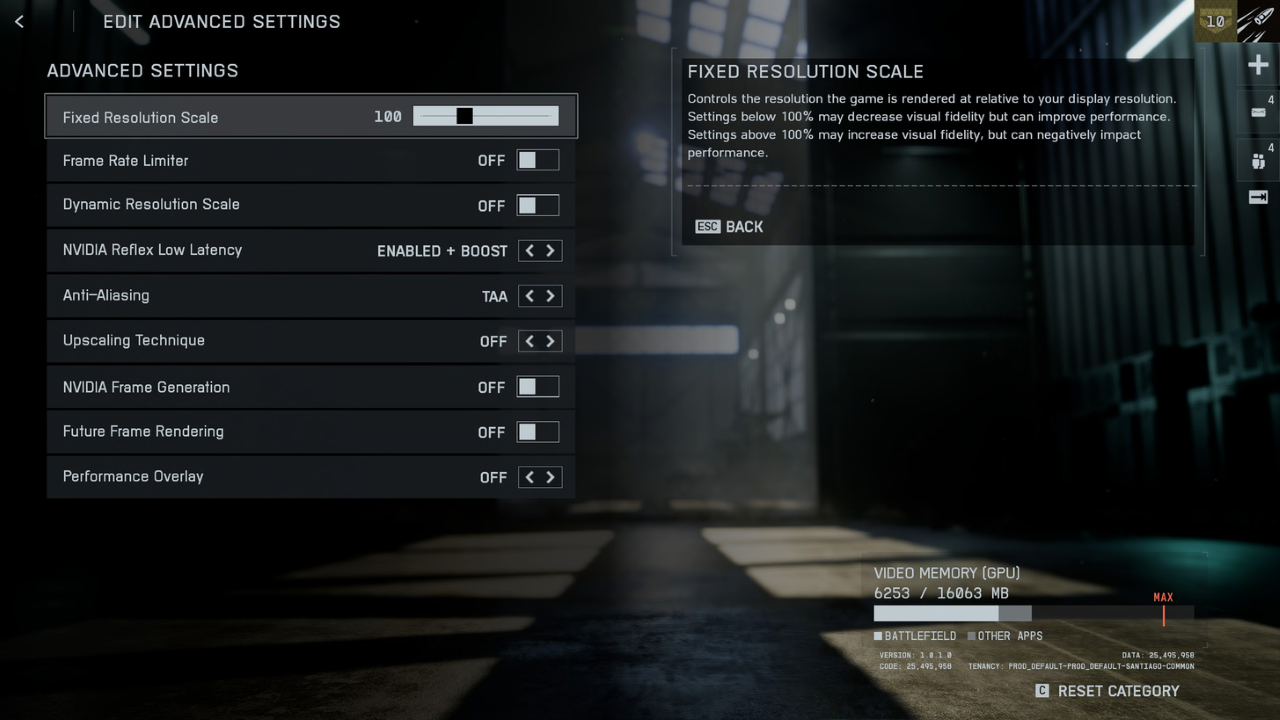
When you open the Graphics menu, these are the basic visual settings you’ll see first. Switch the Preset to “Balanced” or “Performance” if you don’t want any hassle with advanced settings. For this guide, however, you’ll have to set it to “Custom” to access all the individual tweaks below.
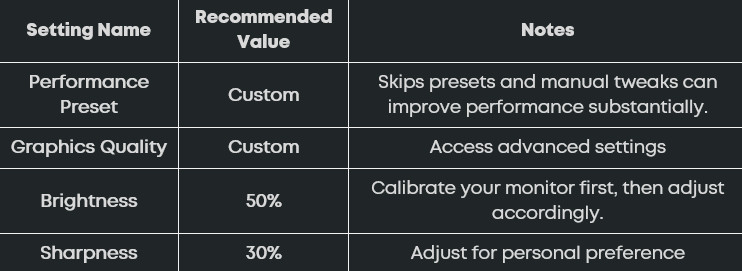
These camera effects look cinematic and visually appealing; however, they create visual clutter and affect visibility. So turning them off helps performance and clear visual noise for maximum visibility in-game.
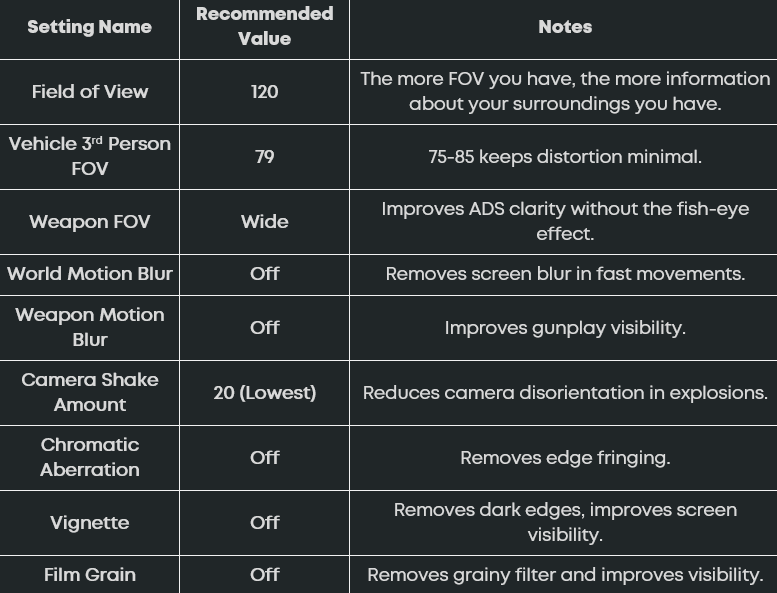
These are the recommended display settings:
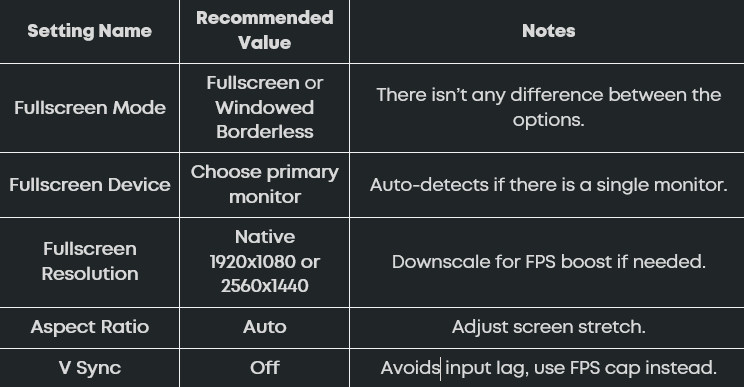
Here are all the individual recommended graphics settings. Click the "Advanced" settings button under Brightness and Sharpness in the "Graphics" tab to access these settings.
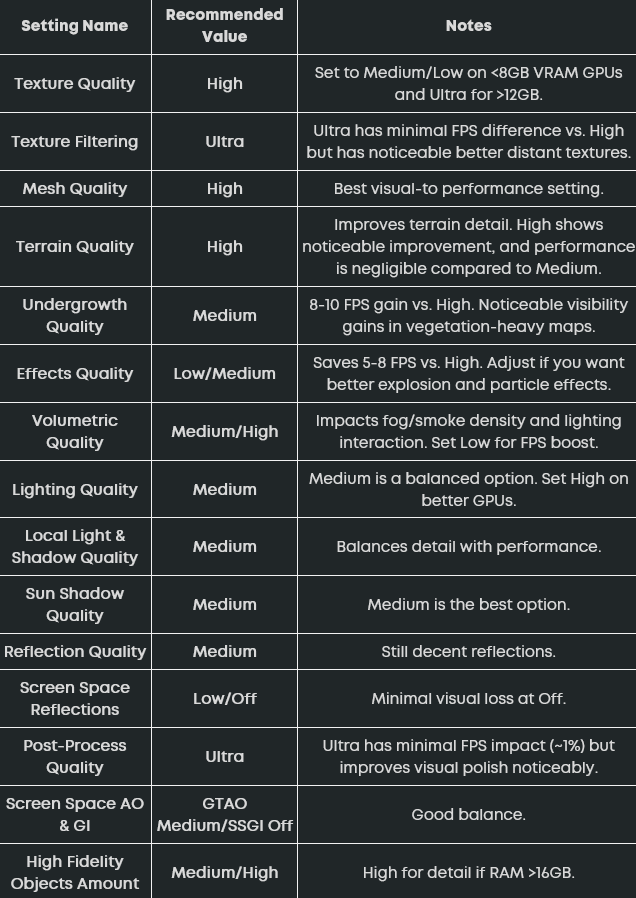
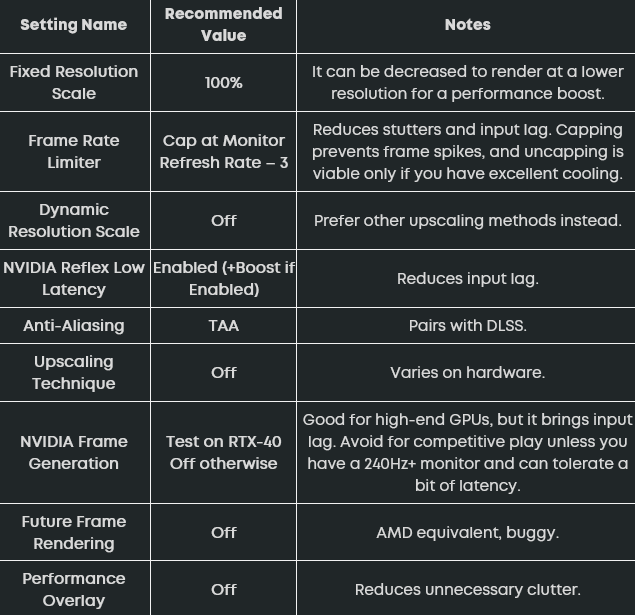
These settings include HUD and UI settings, among a few others.
Just like in any other FPS game, the minimap is a crucial part of your gameplay. It feeds you important intel and should be visible at all times. So here are the recommended minimap adjustments:
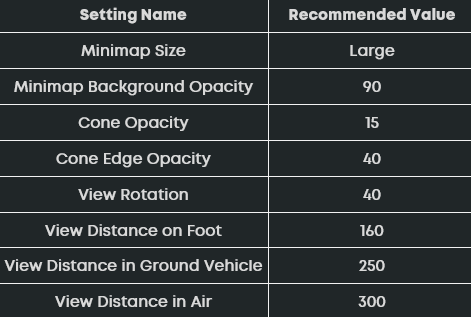
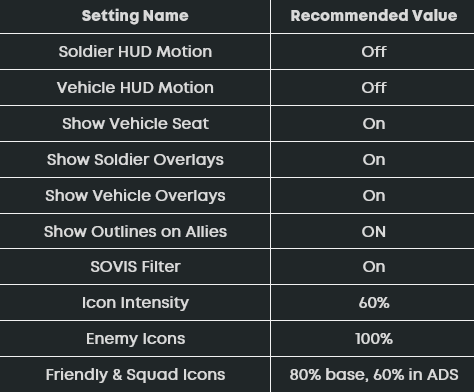
These settings can be found under the Interface & HUD menu. Settings below reduce unnecessary screen clutter while focusing on functionality and crucial feedback in the battlefield.
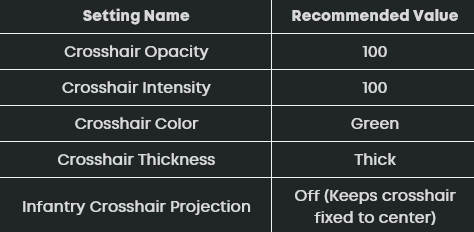
People often neglect crosshair settings in Battlefield 6, but the right crosshair can make a noticeable improvement. The default white crosshair is fine, but it blends with snowy terrains, making it harder to see. So, if you want your aim to stand out, switch to a brighter color like Green. It pops up on most backdrops and keeps your crosshair visible at all times.
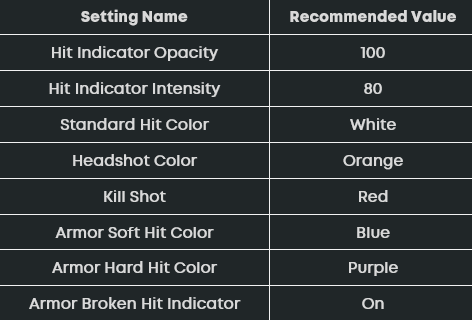
Hit indicators are crucial for target feedback and knowing how much damage you’re inflicting. Access these settings from the “Gameplay” tab. Make the colors pop out, for example, having different colors for Armor Soft & Armor Hard Hit gives you better feedback in the middle of gunfights. This feedback often helps make decisions such as whether to push forward or hold back.
Our recommended Battlefield 6 settings lock you in for a smooth gameplay ride with maximum visibility for competitive play. Jump into the Training Range, mess around with the settings a bit, and see what works best on your hardware. Every little tweak helps, and once you’re all set, drop into the 64-player mayhem and climb that K/D.