With Rust having an incredibly quick TTK (time to kill), you want the game to be as stable as possible, with high FPS and no stutters. Also, reducing visual clutter (plants, shadows, effects) can make enemies easier to spot and improve your reaction time.
Rust is more CPU/world-simulation heavy than purely GPU bound because of physics, entity streaming, terrain, and how Unity works as an engine. While Facepunch is claiming that Rust FPS improvements are being worked on, it might take a while for that to actually happen. Instead, this guide should help you until that happens.
Below we’ll cover the optimal settings for FPS boosts and competitive advantages like being able to spot enemies quicker.
In-Game Settings: Graphics, Image, Gameplay
Graphics/Quality Tab
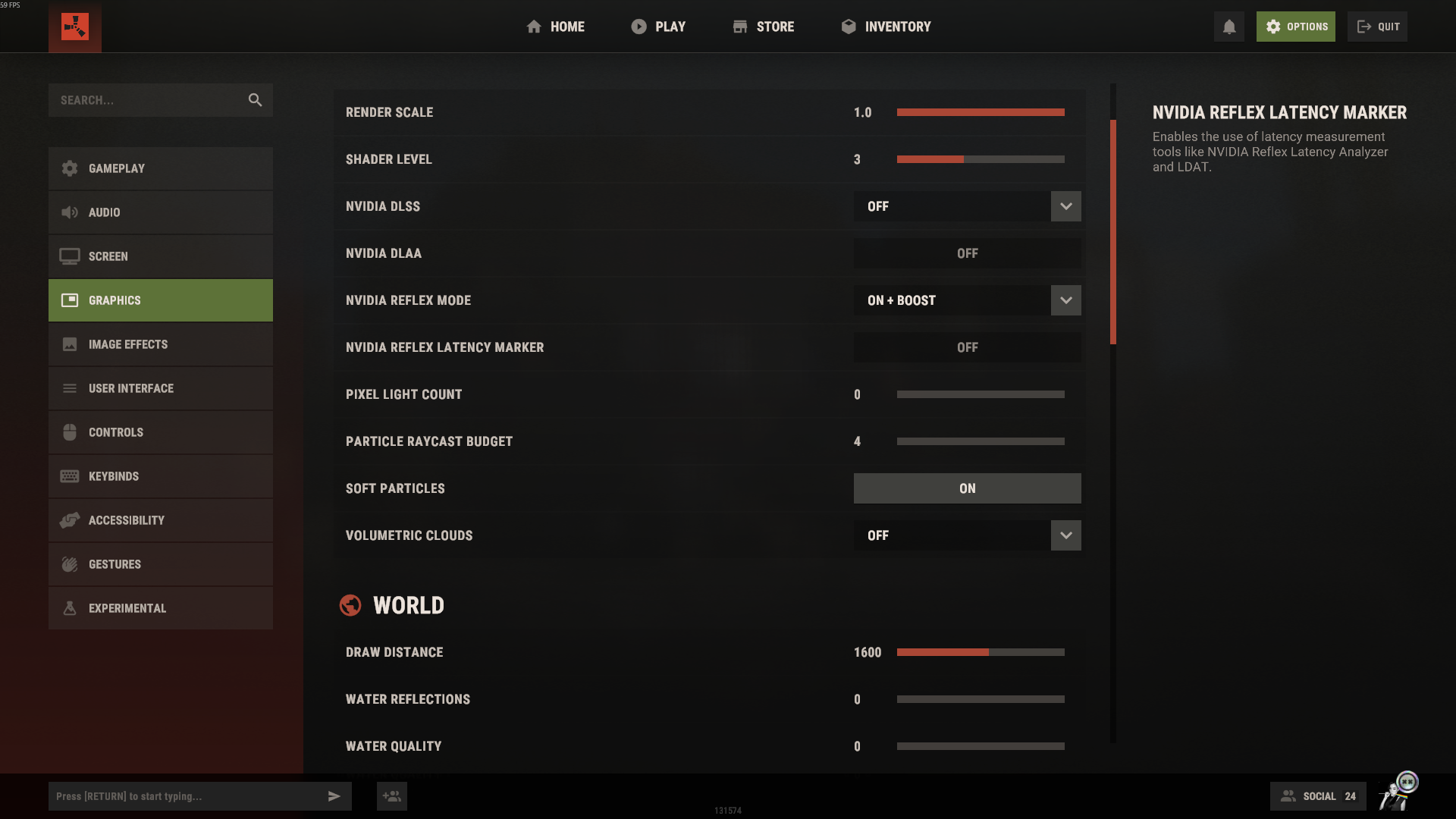
- Render Scale: Lower this if you have a very old GPU and need to boost FPS, but this will make the game look blurry. Suggested Value: 1.0
- Shader Level: Shader doesn’t do much to affect FPS and 3 is a good middleground. Suggested Value: 3
- Nvidia DLSS: Doesn’t improve FPS in Rust. Suggested Value: Off
- Nvidia Reflex: Great for fixing input lag. Suggested Value: On + Boost
- Shadow Quality / Shadow Cascades: Shadows are expensive and produce visual noise in PvP fights. Suggested Value: Off / 0 / no cascades
- Pixel Light Count: Doesn’t really matter. Suggested Value: 0
- Particle Raycast Budget: Keep it low so campfires don’t destroy your FPS. Suggested Value: 4
- Soft Particles: Doesn’t make a difference. Suggested Value: On
- Volumetric Clouds: This destroys your FPS, don’t ever turn it on. Suggested Value: Off
- Draw Distance: The sweet spot to see well without losing FPS. Suggested Value: 1600
- Water Quality/Reflections: Water effects are decorative and costly. Suggested Value: Off/0
- Grass Shadows: Boosts FPS and allows you to see through grass. Suggested Value: Off
- Grass Displacement: Helps you find dropped items as grass moves aside. Suggested Value: On
- Precise Terrain Billboards: No FPS difference. Suggested Value: Off
- Texture Quality: Best for FPS while keeping visuals decent. Suggested Value: Half-Resolution
- Anisotropic Filtering Mode/Level/Parallax Map: Bad for FPS on older GPUs and can blur visuals. Suggested Value: Disabled/1/0
- Shadow Quality: Enough to see shadows without flickering. Suggested Value: 1
- Shadow Resolution: Turn this down if you have an old GPU. Suggested Value: High
- Shadowmask Mode: Helps make shadows look straight. Suggested Value: Shadowmask
- Shadow Cascades: Keeps shadows clean and stable. Suggested Value: 2
- Shadow Max Distance/Max Shadow Lights: Improves FPS without hurting shadow quality. Suggested Value: 0
- Decor Quality/Grass Quality/Terrain Quality: Boosts FPS without major visual impact. Suggested Value: 0
- Max Tree Meshes/Tree Quality/Object Quality: Keeps visibility through trees clear. Suggested Value: 50/100/100
- Lod Bias: No real impact. Suggested Value: 1.0
- Particle Quality: Prevents lag near campfires. Suggested Value: 0
Gameplay/UI/Censorship Tab
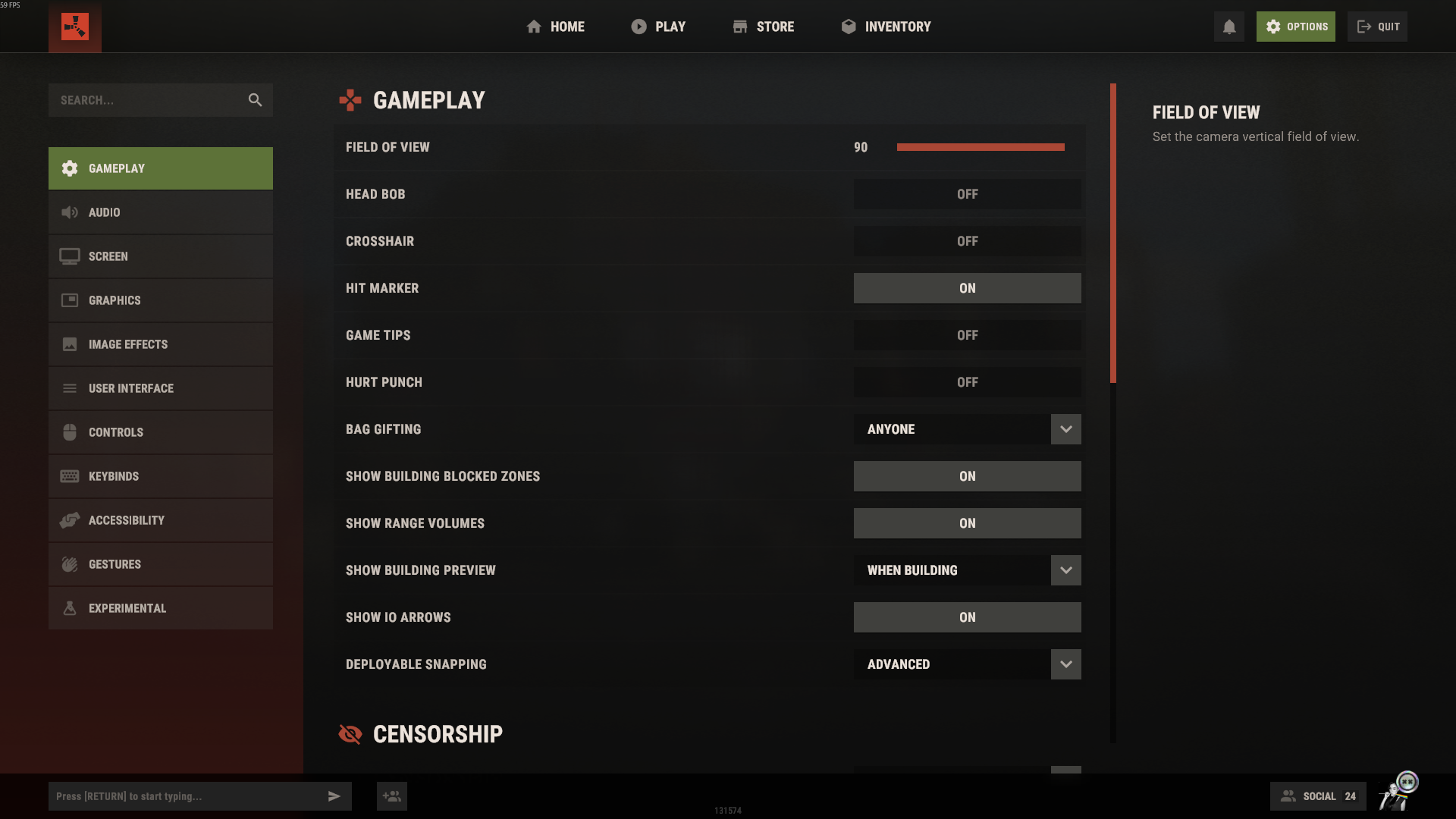
- Field of View (FOV): Anything less will make it difficult to see around you. Suggested Value: 90
- Hit Cross/Crosshair: Hit cross (showing when you hit) is useful. It’s recommended to also use an overlay like Crosshair X. Suggested Value: Hit Cross: On; Crosshair: Off
- Compass Visibility: Helps with orientation and callouts.
Suggested Value: On - Hurt Flash: Turning off removes the shake when you take damage. Suggested Value: Off
- Limit Flashing: If turned off, it prevents sudden visual masking during damage effects. Suggested Value: Off (In Censorship)
- Show Blood: Provides additional feedback in PvP fights. Suggested value: On
- Max Gibs – Suggested value: 0. Lets you see through doors and walls when they’re destroyed.
Console Commands & Launch Options
Beyond the menu, Rust supports console commands and Steam launch options to fine-tune performance and input responsiveness.
Steam Launch/Startup Options
Here are some common and effective launch tags to put in your launch options:
-high -graphics.branding 0
-player.eye_blinking false
-player.eye_movement false
-effects.maxgibs -1
-force-d3d11-no-singlethreaded
-maxMem=16384
Some players also add:
-gc.buffer 4096
-client.headlerp_inertia FALSE
-cpu_priority high
These tweak garbage collection, head movement interpolation, and CPU scheduling.
Useful Console/Bind Commands
- graphics.vm_fov_scale false - “skinny weapon view” for less obstruction when holding guns.
- bind c +graphics.fov 90; graphics.fov 70 to toggle between FOVs and lets you zoom in.
- Headlerp 0 - Affects head interpolation (fast look / smoother head motion).
- egs.enablelegs 0 - Removes your legs (so you don’t see your own legs obstructing view): l
- hitnotify.notification_level 2 - Provides better hit feedback in combat.
- input.holdtime 0.1 - Reduces delay on object interactions.
- inventory.quickcraftdelay 0 - Increases craft UI responsiveness. if you noticed that you click to craft something and it doesn’t craft instantly, this is why
System/Hardware/OS Tweaks
Power Plan
Use a high performance (or “ultimate performance”) power plan in Windows so CPU/GPU don’t throttle.
Disable mouse acceleration/enhance pointer precision
This ensures your mouse movement is linear.
GPU/Driver Settings
- In NVIDIA Control Panel (or AMD equivalent), use “Performance” / “Quality: Low” when applicable.
- Turn off unnecessary features like VSync (unless you need capping), triple buffering, etc.
- Threaded optimization = Auto often.
- If possible, override application settings to favor performance.
Monitor Temperatures/Cooling
Overheating can throttle CPU/GPU, so make sure to change your cooling paste and put away the computer from heat sources, but this much is obvious, right?
SSD for game install
Installing Rust on an SSD is basically a requirement at this point in 2025, works way better on an m.2 as well, helping a great deal with loading into a server.
Workflow: Tuning & Testing
- Start from the base settings above.
- Enter a less populated server/low-stakes area, and monitor FPS, frame stutter, CPU/GPU usage.
- Turn off one visual feature (e.g. shadows) and test again; see how much FPS you gain.
- If you still have headroom, selectively re-enable features (maybe anisotropic filtering, mesh detail) that don’t hurt performance much.
- Use the FPS counter/frametime graph to detect stutters rather than just average FPS.
- In combat, pay attention to whether visual clutter (effects, particles, glare) is interfering more than helping.
- Keep key binds consistent and backed-up (so if you reset settings you can re-import your binds)