Article background image
Arc Raiders

8 Nov 25

Guides

https://cdn.sanity.io/images/ccckgjf9/production/074159ceab9cb77866e6e3925f509ea33646b498-500x500.png?q=50&auto=format

NexxPK

Best Settings for ARC Raiders: Boost FPS, Clarity, and Performance

These are the best settings to ensure you can extract safely and look good doing it.

ARC Raiders uses the Unreal Engine 5 and supports modern upscaling and lighting features. Not a surprise with how UE5 is the most popular engine for most developers these days. Surprisingly though, they managed to actually optimize it a lot which helps. The game runs extremely well even at high resolutions with ray tracing enabled on good PCs using the new GPUs.

However, because it is an extraction shooter, responsiveness, visibility, and frame rate matter a lot. Any stutter, hitching, or delay can cost a gunfight or extraction, and you don’t want that, now do you?! Even modest hardware can run the game acceptably if settings are tuned.

You want settings to balance between nice looking graphics and clarity plus responsiveness. Effects, crowds, bots, and open environments increase load, so optimization is important.
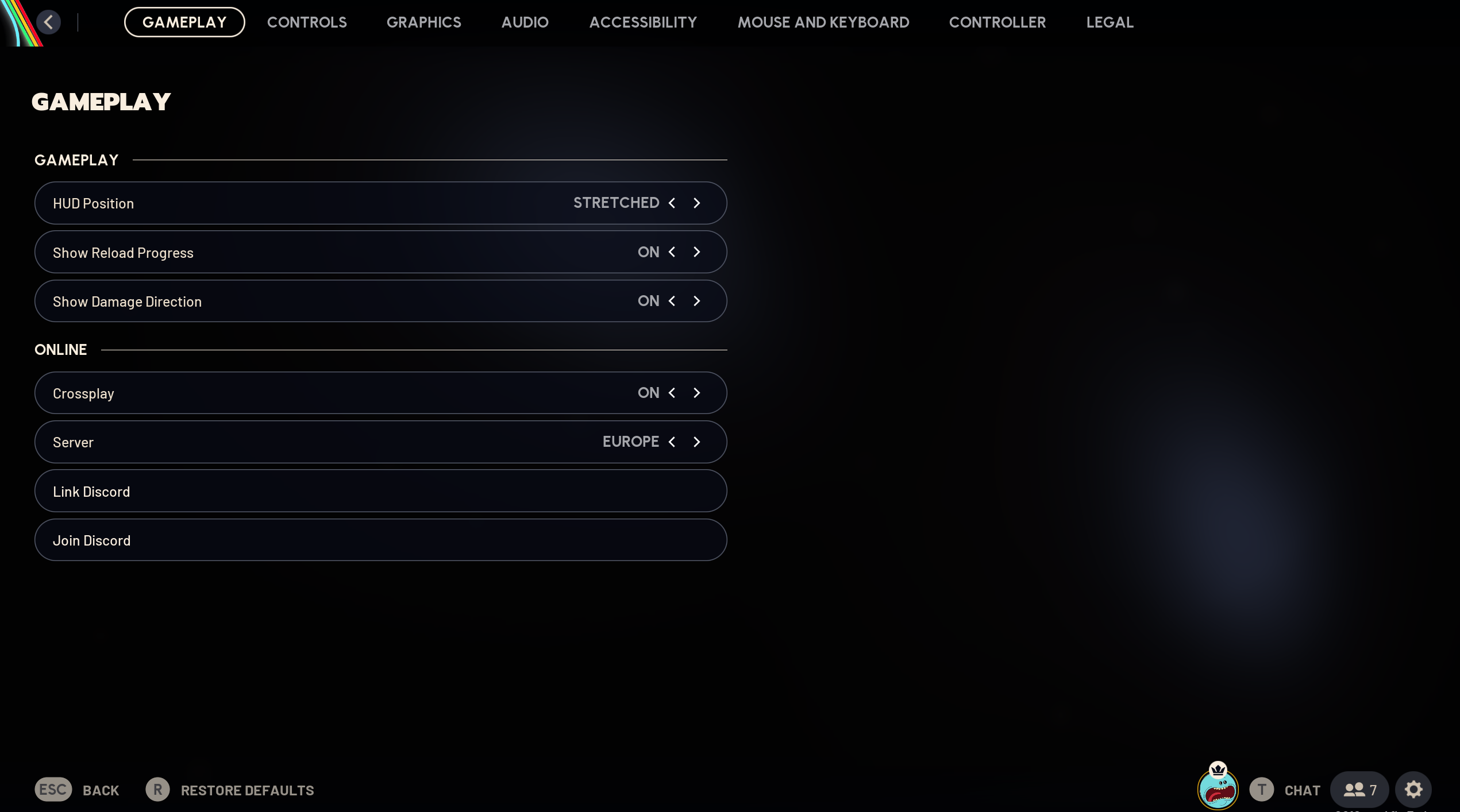
PC: Optimal Graphics and Performance Settings

Here is a recommended base for PC. Adjust depending on your GPU, CPU, and RAM, but this gives a strong starting point.
Basic Recommended Settings

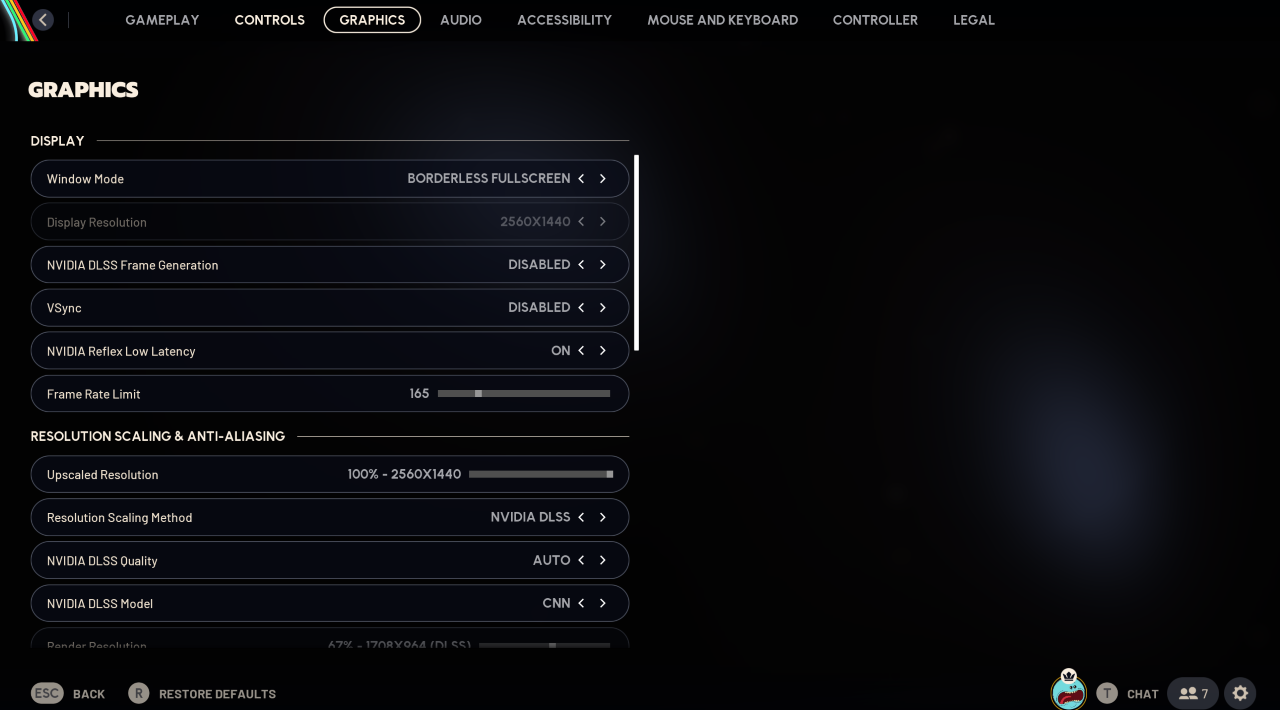
  • Window Mode: Borderless Fullscreen
  • VSync: Disabled
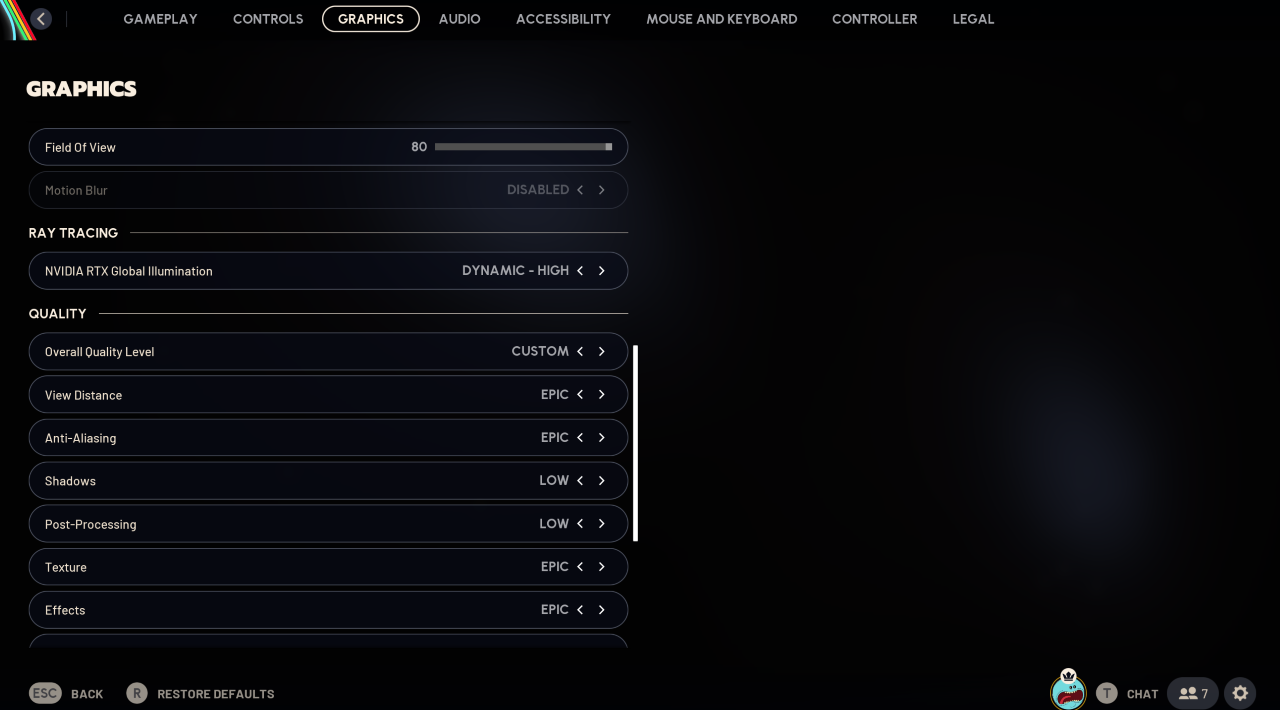
  • Motion Blur: Disabled
  • Resolution Scaling/Upscaling: Use something like AMD FSR3 or NVIDIA's equivalent (DLSS) to recover performance while keeping sharpness.
  • Overall Quality Level: This will be Custom as you adjust them.

Detailed Per-Setting Recommendations

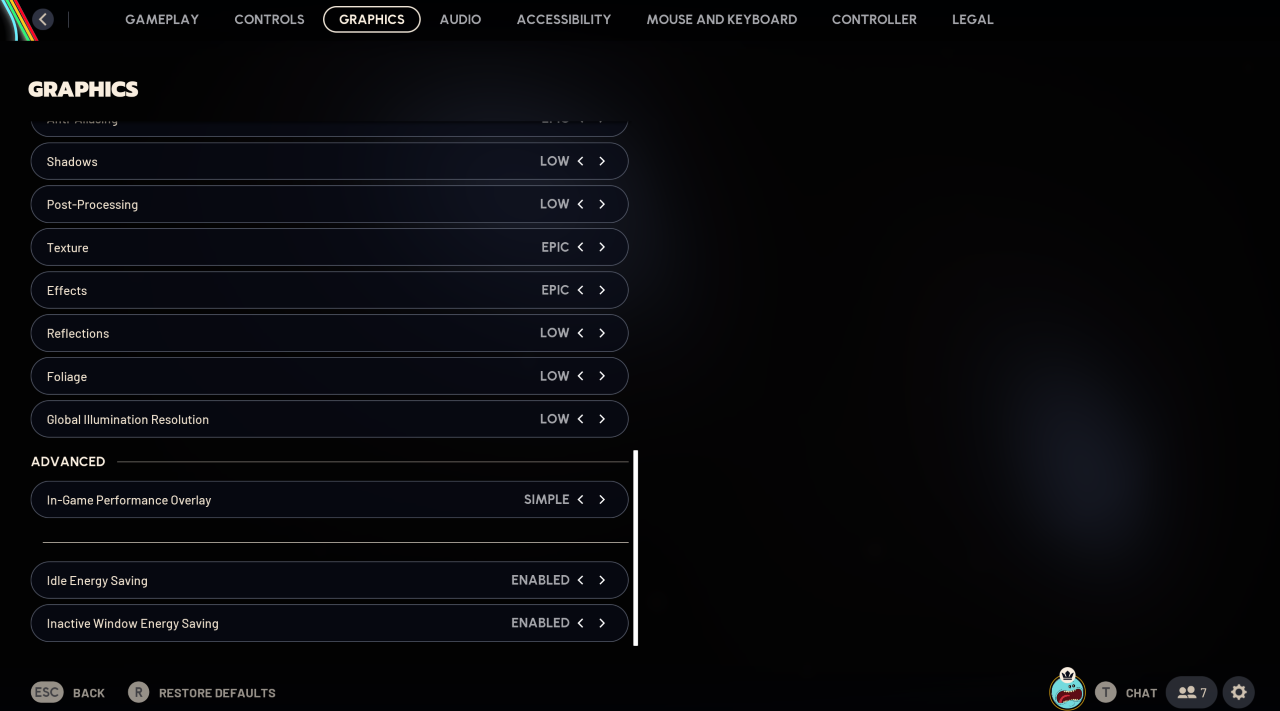
  • Anti-Aliasing: Epic. Reduces post-process cost, but most GPUs have no issues and can run this easily at Epic.
  • Shadows: Low. Shadows are heavy on the GPU. Reducing helps frame times. You can improve this if your GPU is relatively new.
  • Post-Processing: Low. Cuts bloom, depth-of-field, and heavy visual effects while also improving clearness of textures, making it more obvious to spot things out both at distance and up close.
  • Textures: Epic. You can run this at Epic as it isn't very taxing on the GPU and it keeps the textures of everything in the game looking sharp and clear from distance.
  • Effects: Epic. Another setting you can keep at Epic, but you can go for Low if you are struggling with seeing through explosions, etc.
  • Reflections: Low. Screen-space reflections and similar can cause frame drops without offering too much of a competitive benefit.
  • Foilage: Low. Dense vegetation draw calls can hit CPU/GPU, and plus it can make it difficult to spot enemies.
  • Global Illumination Resolution: Low. Reducing resolution keeps performance stable and there aren't any real drawbacks.

Advanced Tips

  • Update graphics drivers and make sure Windows is up to date too.
  • Close background apps that use CPU, GPU, or RAM, especially Chrome as it chews through RAM.
  • If you still have dips, try lowering upscaler quality or reduce resolution.

Visibility and Competitive Edge

Visibility issues such as shimmering and ghosting are common. Widen the field of view as much as possible so you can actually see as much as possible. The max in Arc Raiders is 80 so use that, lowering it will increase FPS by a bit but its normally not worth it.

Audio Settings

  • Effects Volume: 100% to hear footsteps, weapons, and mobs clearly and not have people sneak up on you while you’re looting.
  • Music Volume: Reduce to 0 if you are being competitive, this way you can’t be making a mistake between some music and someone making noise in a bush nearby.

Network and Performance Stability

Network performance and system stability matter. Some lag is GPU/CPU related, some is network latency or packet issues.

Extra Tips

  • If frames are high but you see teleporting or rubber-banding, it is likely a network issue.
  • If stutters occur when many things happen on screen, it is likely GPU/CPU hitching, this is something that has nothing to do with your network setup but can be caused from a faulty CPU driver, so make sure that you are also updating and/or installing CPU drivers.

    For AMD: https://www.amd.com/en/support/download/drivers.html.
    For Intel: https://www.intel.com/content/www/us/en/download-center/home.html.

    Use the auto-detecting provided to install the correct driver based on whatever CPU you might have, but be careful when doing this and pay attention so you don’t end up installing the wrong driver.
  • Use wired Ethernet if possible, minimize background uploads/downloads, wi-fi can cause a lot of issues when playing Arc Raiders.

Conclusion and Key Takeaways

Optimizing ARC Raiders is about finding the right balance between smooth performance, clear visuals, and fast responsiveness. Because of the game’s fast-paced action and open environments, maintaining a stable frame rate is more valuable than chasing maximum graphical fidelity. Disabling annoying effects like motion blur (this is a big competitive advantage and stops headaches in a lot of players) and high shadows while using upscaling features ensures smoother gameplay and sharper visibility.

For console players, fine-tuning control sensitivity, field of view, and audio cues can greatly improve reaction time and situational awareness. Small adjustments, such as lowering dead zones or increasing effect volume, can make gameplay feel more responsive and immersive.

Network stability is just as important as graphics optimization. A wired connection, updated drivers, using your own internet instead of leeching off your neighbour and reduced background activity can prevent lag and improve consistency when playing.

In the end, the best ARC Raiders settings depend on your hardware and priorities you have yourself, if you are more competitive or not as a player. Whether on a high-end PC or console, prioritize clarity, stability, and control over flashy visuals. Good, constant, stable FPS and better visibility will always give you an advantage.

Related articles