How To Get More FPS in Fortnite
Losing a game to poor system performance is pretty frustrating. Here’s how PC users can optimize Fortnite to get more FPS.
Losing a game to poor system performance is pretty frustrating. Here’s how PC users can optimize Fortnite to get more FPS.
Achieving super smooth performance in any fast-paced shooter is a recipe for increasing your win count. This is especially true in competitive titles like Fortnite, where respawning isn’t an option and the margin of error is almost zero, forcing you to make as few mistakes as possible.
An average gaming system handles Fortnite well, but since the Unreal Engine 5 treatment, performance issues aren’t uncommon. Skills are your bread and butter to top the charts, but if the game is struggling to keep up with those flashy inputs, then it’s a big no-no.
Unexpected frame drops, freezes, and crashes can be due to the system’s limitations or poor game optimization. Either way, you’ll lose confidence during peak moments and eventually, a deserving win. To ensure that you optimize Fortnite like a pro, here’s how to get more FPS and keep it stable.
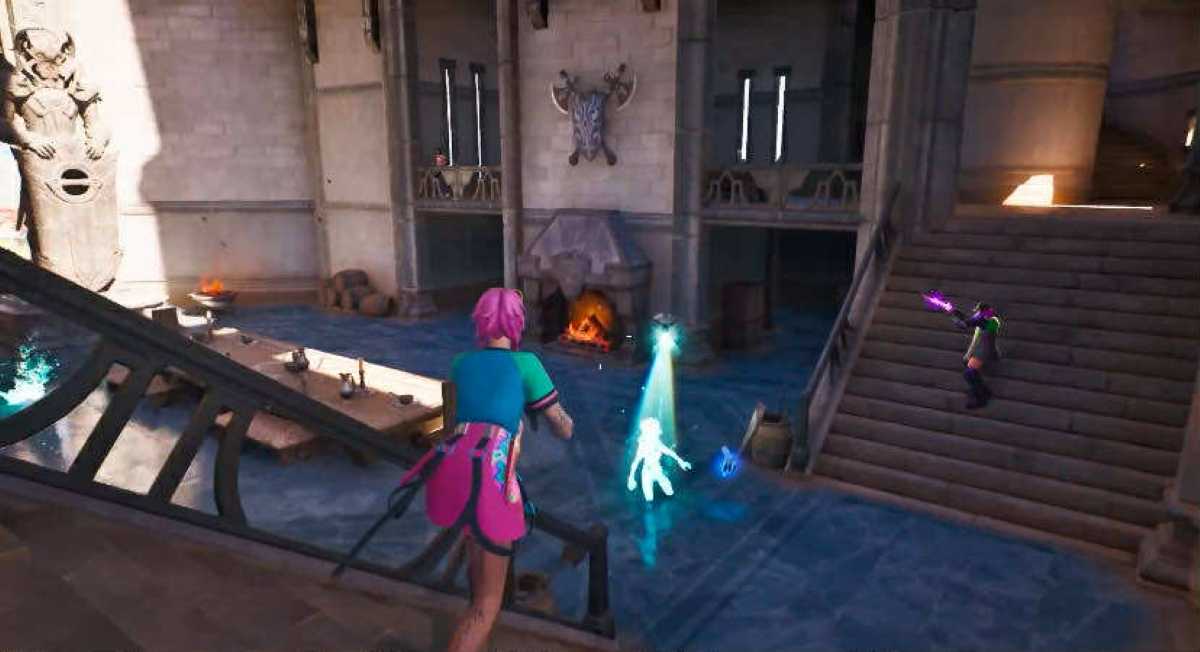
Since we’ll be making some crucial system tweaks and edits before diving into in-game graphical settings, it’s wise to create a system restore point to recover from a sticky situation. For that, simply type “restore point” in the search bar and click on “Create Restore Point” when the menu appears.
You can configure and rename it to anything memorable, such as “Performance Boost”, allocate it some space, and finalize the build. Now, you are safe. If you accidentally made some game-breaking changes, this restore point can buy you a second chance. With that said, let’s jump to the part where we extract more performance out of Fortnite.
Microsoft Windows 10 offers game-specific settings as well, to go beyond personalization. However, some of the additional options, especially accessibility features, can cause more harm than good. This is because these features are constantly running in the background, feeding on precious power which could have fueled the game for better performance.
To make the most out of your system, the first step is to enable the “Game Mode” so the operating system can optimize itself to spare more resources for gaming. After that, consider turning off game capture features, as they are always active for sudden gameplay captures. The Game Bar is the culprit here, and to prevent it from prompting automatically, turn off “Allow your controller to open Game Bar,” and you are good to go.
Don’t turn off the Settings menu yet, as there’s more to get done before we dive into Fortnite. Head to System and then Advanced Display Settings. Here, make sure you are using the maximum refresh rate supported by your display. For instance, if it’s set to 60Hz by default, crank it up to the max, such as 75Hz or 120Hz, this will help us to get maximum FPS in Fortnite when uncapped.
After taking care of the refresh rate, go to Graphics Settings in the Display menu. Now, choose the Fortnite executable file (Fortnite.exe), select GPU Preference, and set it to “High Performance”. This way, the system will automatically grant more GPU power to the game as it’s a high priority now. Apart from these, turning Hardware-Accelerated GPU Scheduling on and keeping the operating system up to date can also help you maintain performance like a pro.
This step can provide a night-and-day difference, especially for laptop users. Simply head to the Control Panel and open Power Options, sitting in the Hardware and Sound section. Before we dive in further, keep in mind that tweaking the system’s power plan can cause abnormalities such as overheating. If your machine is properly ventilated and can withstand the load, then you may proceed.
In Power Options, you’ll come across Balanced, High Performance, Ultimate Performance, and more, depending on the system. Here, we recommend switching to High Performance for laptop users and Ultimate for those who enjoy Fortnite on high-end machines. Doing so will allow your machine to provide maximum performance at the cost of sucking maximum energy.
Though we did disable unnecessary applications like Game Bar, there’s a lot more that boot up with the system, consume extra resources, and provide nothing special in return. For someone who wants maximum gaming performance, silencing these tasks is bread and butter.
Fire up Task Manager by hitting Ctrl+Alt+Del and clicking on the Startup menu to uncover the list of all the applications that wake up automatically with the system. Identify all the tasks with Medium or High impact level and disable them for the sake of Fortnite.
Similar to Startup apps, there are plenty of vital background services that work with Windows to deliver a useful experience. However, some of these are tied to features that aren’t used often or don't provide something special.
To prevent them from eating up extra RAM and CPU juice, just head to the Services section of the Task Manager and disable all of those that feel irrelevant. This move will not only provide smoother gaming but also enhance the overall performance for basic tasks such as opening up File Explorer.
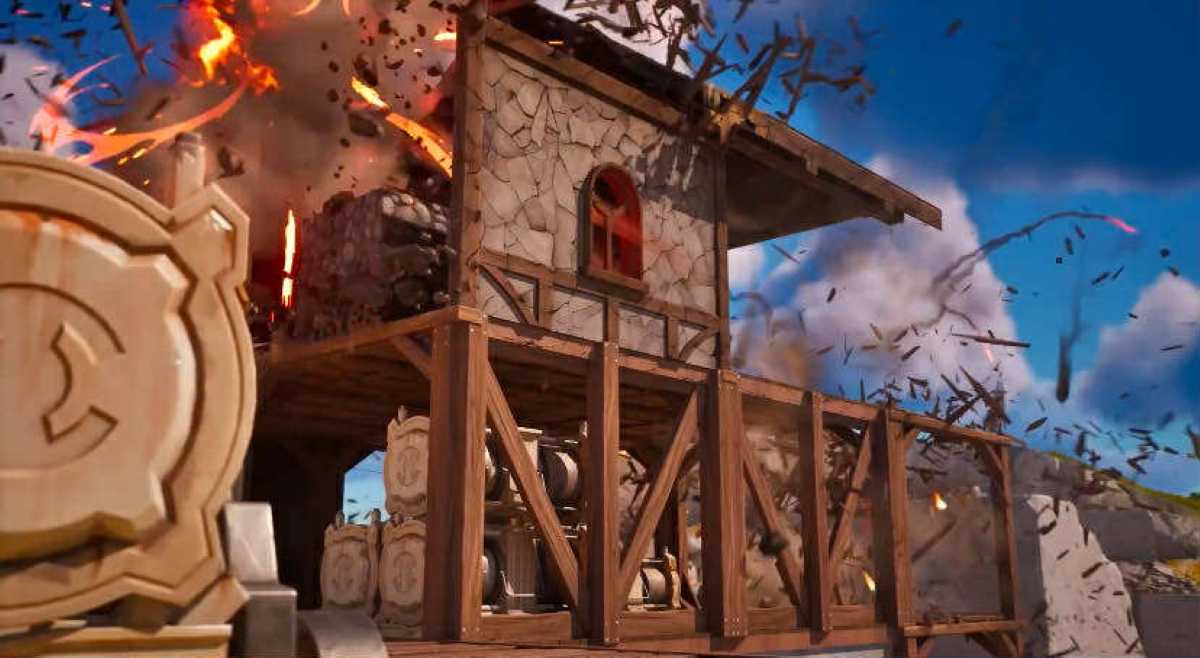
With the system taken care of, now is the time to use the in-game settings that are common among pro Fortnite players. The main highlight of these tweaks is, of course, increasing FPS, but they also strive to maintain visual quality to ensure a smoother yet crispier experience. Here’s what to follow in the video settings.
Opting for these provides a fair balance between image quality and performance. If you have a beast of a system, textures, view distance, and 3D resolution can be aimed higher. But if you are still struggling regardless, go for no anti-aliasing, low shadows, and textures to gain an extra bit of performance.
With all of the insights considered, you can expect a significant improvement in Fortnite performance. As you can see, the game itself is surrounded by a fair amount of boundaries, such as various applications like Game Bar or resource-sucking services. Due to this, your system alone can’t be blamed for frame drops and freezes. But if you are still not where you want to be smoothness-wise, it’s time to upgrade and attain the optimal gaming experience crucial for bagging Victory Royales.