Overwatch Best Settings For High FPS And Visual Clarity
Here are the best settings for Overwatch that will get you great performance without sacrificing much visual fidelity.
Here are the best settings for Overwatch that will get you great performance without sacrificing much visual fidelity.
Overwatch is one of the biggest hero shooters out there. In fact, it might be the game that brought the idea of hero shooters to the mainstream. And, while there are many reasons for Overwatch’s popularity, one of the most appreciated parts is the polish and optimization.
Overwatch is one of the best-looking hero shooters to play. It’s much ahead of its competitors like VALORANT and Marvel Rivals in terms of pure visual fidelity. But, despite that, it runs pretty well. However, running any gaming on default presets (Low, Medium, High, etc) is never a good idea.
You are always skipping out on free performance. So, while the game runs brilliantly on most hardware, here is how you can optimize it to run even better without losing any visual fidelity
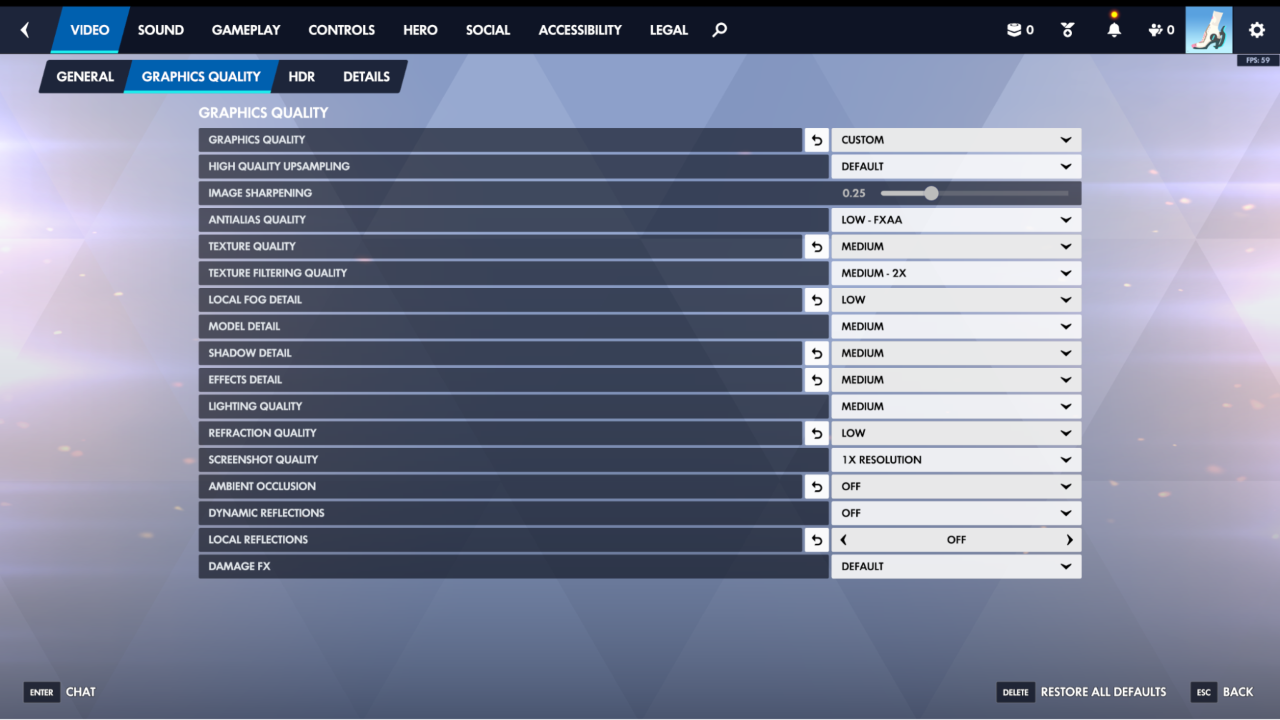
In order to squeeze out performance from the game, you have to get your hands dirty with the video settings. That would involve testing out all settings to see which gives the best performance in terms of quality. Fortunately, I have already done that, so here are the settings you should use to get the best competitive experience in Overwatch.
Just navigate to the Video Settings page in the game’s settings. The Video Settings is divided into four separate tabs: General, Graphics Quality, HDR, and Details.
The first two are the most performance-impacting, so let’s start with that.
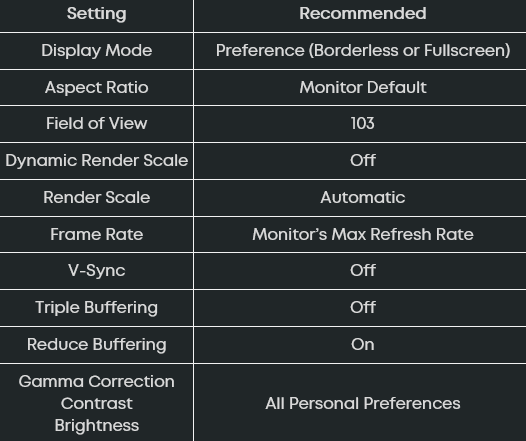
For Reduce Buffering, turning it on reduces latency, but can introduce stutters in some systems. Test it out on your system.
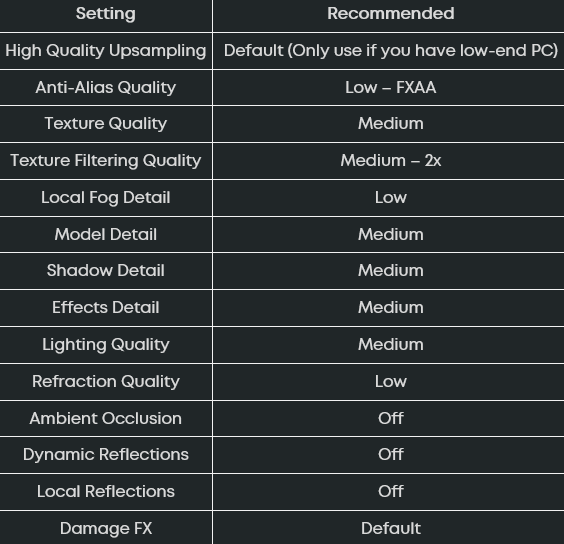
HDR does not have any performance impact on the game. It's best to leave it at the default. As for the Details tab, you will find the FPS counter along with other telemetry stats. This doesn't impact performance in any way. Just enabling Framerate is more than enough, as it allows you to see what frames you are getting.
These settings don’t get you extra frames, but they do make playing a lot easier.
Overwatch has a lot of information on screen, with so many abilities going off. Along with that, there are also HUD elements, some of which are useful, some of which are distracting.
Navigate to the Accessibility tab in the settings. Under the General settings, you will find some important settings.
These will make your UI much less distracting.
The most important settings after video settings are your control settings. This includes a lot of stuff like sensitivity, binds, and crosshair. Now, most of these are personal preference, so there is no one-size-fits-all. But it’s important to spend some time tweaking these out as they directly affect your performance in-game.
For Sensitivity, the safest bet is to convert your sensitivity from other similar shooters and then adjust it from there. However, in Overwatch, you might have to change your sensitivity for other heroes.
Note: Make sure to turn on High Mouse Precision Input in Gameplay > General. It ensures your sensitivity remains consistent and removes any sort of mouse acceleration.
For instance, mechanics-dependent heroes like Cassidy or Hanzo will require you to play on a different sens than heroes like Vendetta, Moira, or Reinhardt, which usually benefit from a higher sens. It’s always a good idea to look up settings for a specific hero that you want to main. You can find some really useful tips.
For instance, a lot of Kiriko mains like swapping their primary and secondary fire buttons, as using the left click to shoot the kunai instead of the right is easier because of muscle memory.
From sensitivity to crosshair, all of these can change slightly depending on the type of heroes you play. This is something you can keep tweaking as you play the game.
Overwatch is brilliantly optimized, but there is always room for more frames. These settings aim to give you the best performance while keeping visual quality good. Feel free to test higher settings to see if it’s worth it for you. Performance also depends on your hardware. For instance, higher spec PCs give you the room to play on higher settings.
With these settings you should be able to enjoy a smoother Overwatch experience and dominate lobbies without having to worry about stutters or frame drops.