How to Make a Custom Crosshair in Fortnite
Custom crosshairs are a staple feature in most competitive games, except Fortnite. However, there are still ways to make a custom crosshair in Fortnite, and here’s how.
Custom crosshairs are a staple feature in most competitive games, except Fortnite. However, there are still ways to make a custom crosshair in Fortnite, and here’s how.
The freedom to create your custom crosshair has become a staple feature in most competitive shooters out there—except Fortnite. The game has been missing this feature since its launch, and there are no promises for it to be added in the future.
For a game as big as Fortnite and the massive development team behind it, adding a crosshair maker tool shouldn’t be that hard. It’s not that they can’t add a crosshair maker; it’s just that they won’t.
However, this doesn’t mean you can’t make a custom crosshair in Fortnite. There are many ways to do so that are allowed. We’ll be going over in detail how to create a custom crosshair, whether they are allowed, and whether it is even worth making one in the first place.
Custom crosshairs are usually from third-party apps. Most anti-cheats, including Fortnite’s, aren’t too welcoming to third-party apps, which begs the question, “Can a custom crosshair get you banned?”
The topic of whether custom crosshairs are allowed has been discussed for a long time. Epic Games has never officially allowed nor disallowed the use of custom crosshairs. However, there are strict guidelines that must be followed when it comes to third-party apps.
Related: An Overview of the Best Settings In Fortnite
With all the rules and technicalities associated with custom crosshairs, are they even worth using? Well, the answer isn’t a clear yes or no. So, let’s weigh the pros and cons, and you can decide for yourself if custom crosshairs are worth it for you.
Changing from the default and boring crosshair and making one to your liking brings numerous advantages to your gameplay.
One of the main issues with the default crosshair is that it’s not static and reacts to the weapon’s recoil. This can be a major issue if you play other shooters like VALORANT and CS2, where the crosshair remains static.
The Fortnite built-in crosshair expands and compresses based on your movement. If you move too much, your first bullet accuracy decreases. This can be distracting in the midst of a duel.
A custom crosshair is the perfect way to combat this, as they remain static throughout the whole time you’re fighting, so that all your attention can stay on the enemy in front of you.
You also can’t change the color of your crosshair. It’s white by default, which can blend in some areas of the map, causing visibility issues. With a custom crosshair, you have a bit more control over the color.
While using a custom crosshair brings enormous benefit to your gaming abilities, it does come with a couple of disadvantages
The default crosshair, while distracting to some, does provide a lot of valuable information about the game. It tells you the number of bullets left, gives you hit marker feedback, displays the bullet spread, and weapon ready state (very useful for shotguns).
Not to mention, the information it provides while in building and editing mode. You may not notice this information as much because you are used to it, but when you switch, you will notice it missing, which can be a problem.
A custom crosshair does not provide all this information to you, so the best practice could be to use both the default reticle for important information and the custom crosshair for better performance in fights.
A significant drawback to using a custom crosshair is that not all of them can be properly used while in full-screen mode. They usually operate best in windowed/borderless modes. If you play in Fullscreen Exclusive, you will have very limited options.
Another disadvantage is that you could potentially violate Epic’s competitive integrity rules and get banned while playing with a custom crosshair.
Related: Fortnite: 10 Tips To Win More Matches
Most modern monitors nowadays come with built-in custom crosshairs in their settings. Open your monitor settings by pressing a button on the back/bottom of your monitor, then navigate to the gaming area and choose the crosshair option. Choose your preferred crosshair and start playing.
These crosshairs work in full-screen mode and are anti-cheat safe. However, these are limited to the styles provided by the manufacturer. Using this method is also a way for console players to get the custom crosshair experience.
Crosshair V2 is one of the foremost free custom crosshair tools that is used by many in the Fortnite community. It is easy to use, pretty light on your system, and one of the safest options.
It provides presets of different shapes and colors, but it only works in borderless mode and lacks full-screen support. Crosshair V2 is a screen overlay and does not mess with game files, which makes it a suitable choice to use.
The second-best free option is called Custom Crosshair. You can find it on the Microsoft Store and use it immediately after installing it. To use this, you will have to enable Game Bar. It works by using a 100x100px PNG and overlaying it over your game. You will have to find or design the PNG yourself. It works in all screen modes, even Fullscreen Exclusive.
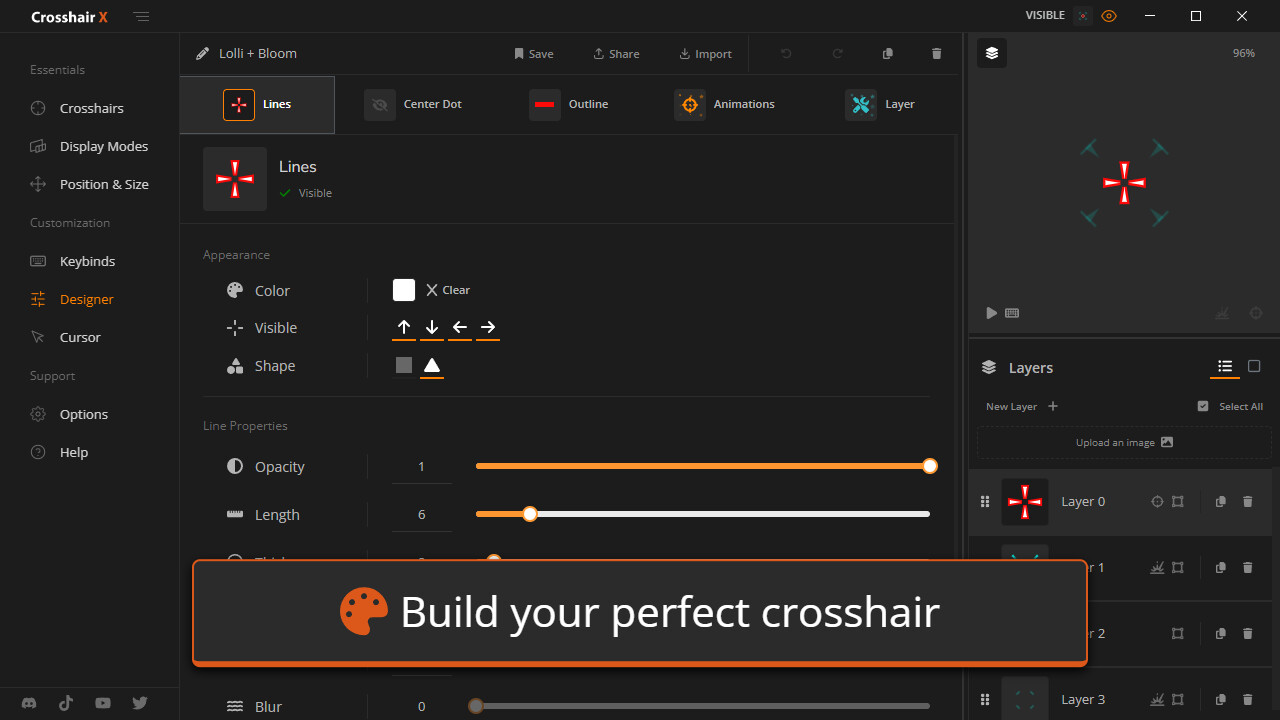
CrosshairX is one of the best apps that provides custom crosshairs for use. Most pro players use this because it gives the most options to customize their crosshair. You can change shape, color, opacity, offsets, and the ability to save your presets. They have a free trial, so you can test it out before spending money on it.
Another amazing quality of CrosshairX is that you can have different crosshairs for every gun that you want. You can create a smaller reticle for your shotgun, a static, larger crosshair for your rifle, and so on. CrosshairX works in full-screen mode with help from Game Bar for minimal lag.
HudSight is a screen overlay that works in full-screen and windowed mode, with options to customize your own crosshairs. HudSight also works alongside Game Bar.
AimTrainerX is another paid crosshair overlay that has customizable reticles, adjustable opacity, size, and color, and can be used in any Windows mode. Coupled with all of this, AimTrainerX also has a dedicated aim trainer to help you become better in a variety of games.
Ultimately, using a custom crosshair is up to the needs and requirements of the individual player. It all depends on how competitive or casual you plan to be while playing Fortnite. A player who infrequently plays might not give much thought to putting in the effort necessary to improve a little.
On the other hand, a player seeking to become the next Bugha or Peterbot might find it incredibly helpful that the features that a custom crosshair provides.
While custom crosshairs do bring a multitude of positive aspects, competitively, it might be safer to use the default reticle in order to not get banned.
In conclusion, your crosshair should support your skill—not substitute for it.
So, customize smartly, aim sharper, and play fair!