Best AMD Settings For FPS On Laptop And PC
If you play competitive shooters on an AMD GPU, you know the difference between a smooth game and a choppy mess is not just your hardware.
If you play competitive shooters on an AMD GPU, you know the difference between a smooth game and a choppy mess is not just your hardware.
If you play competitive shooters on an AMD GPU, you know the difference between a smooth game and a choppy mess is not just your hardware. The Best AMD Settings For FPS On Laptop And PC are a mix of driver tweaks, Windows tuning, and in game choices that focus on responsiveness instead of eye candy.
In this guide you will set up a performance first AMD profile, clean up latency, and apply a repeatable path that works on both desktop and laptop, without needing to be a full time technician.
Your AMD Software Adrenalin global profile is the base layer for every game. If it is tuned for performance, every new FPS you install starts in a good place.
Use this as a quick reference.
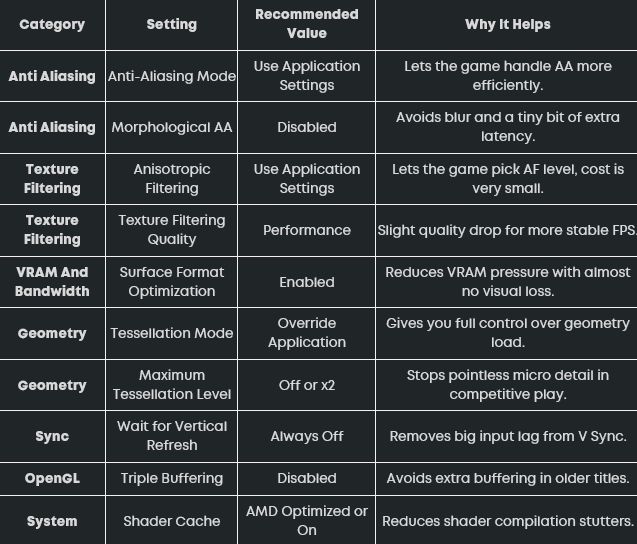
Apply this once and you have a solid baseline for all your FPS games.
AMD packs a lot of smart features into Adrenalin. Some of them help latency, others quietly hurt consistency.
Radeon Anti Lag shortens the queue of work the CPU sends to the GPU. That brings your mouse input closer to what you see on screen and reduces that floaty feeling when you flick.
If you want the official deep dive, AMD explains how the feature works in its overview of AMD Radeon Anti-Lag.
For CS2 and other supported titles, Anti Lag 2 is built into the game itself. It lines up the game simulation and rendering loop more precisely than the generic driver version.
In CS2:
Keep the global Anti Lag on for everything else.
Radeon Boost lowers resolution when you move the camera fast. That helps FPS graphs, but during a fast flick the target can look softer at the exact moment you need clarity.
Radeon Chill saves power by lowering FPS when nothing moves on screen. The constant adjustment can change mouse feel over a match.
Manual optimization can feel like homework. According to the FPS boost and optimization tool Hone, you can also standardize your FPS settings for CS2 through automated boost packs that handle power plans, background services, and game config tweaks while you focus on playing.
Hone, or something like Razer Cortex is not a replacement for good AMD driver settings, but a way to automate the Windows and game side work you would otherwise have to repeat after every reinstall.
Once latency features are set, you need to control how your frame rate behaves.
A slight frame cap can:
Simple options:
A simple rule is refresh rate minus three. For 144 Hz, cap around 141 FPS.
Classic V Sync holds frames until the monitor is ready, which removes tearing but adds noticeable delay.
For competitive FPS:
If tearing really annoys you, you can test Enhanced Sync, but plain V Sync should stay off when your rank matters.
Radeon Image Sharpening is a light sharpening filter that restores detail lost by TAA or lower resolution.
This works especially well in games that look a bit smeared at low settings.
Your desktop can squeeze more out of an AMD GPU if you let the CPU talk to VRAM more efficiently and stop Windows from being too aggressive about power saving.
Smart Access Memory is AMD’s name for Resizable BAR. It lets your CPU access the full VRAM pool instead of tiny chunks and can give a small performance gain in some titles.
On a supported desktop:
If the toggle is grayed out, your hardware mix or BIOS settings still need adjustments.
Even desktop systems lose FPS when Windows decides to park cores or downclock the CPU.
This pairs nicely with your AMD driver settings and keeps FPS more stable when a match gets busy.
Laptops have tougher limits. The same Best AMD Settings For FPS On Laptop And PC still apply, but power sharing and display routing can make or break performance.
Most AMD gaming laptops include performance profiles in the OEM control panel.
This helps SmartShift style power sharing give the CPU enough headroom for CPU heavy games like CS2.
Many laptops route the dGPU output through the integrated GPU by default. That saves battery but costs FPS and adds latency.
If your laptop supports it:
You lose some battery life but gain cleaner performance for competitive games.
On hybrid systems, Windows sometimes chooses the wrong GPU.
This prevents games from accidentally running on the integrated GPU.
Your driver and system are now tuned. The last part of the Best AMD Settings For FPS On Laptop And PC is your in game config.
Almost every shooter reacts well to the same basic layout:
If you want a game by game breakdown, the CS2 guide called The Best Settings For CS2 shows how to apply these principles inside the Source 2 engine, from resolution to visibility tweaks.
For Valorant, the article on the best graphics settings to use in Valorant for the most FPS illustrates how low impact graphics options can still retain clear models and readable maps on an AMD system.
Older titles still benefit too. If you play CS:GO on the side, the ultimate settings for CS:GO guide is a useful reference for keeping that game smooth on modern AMD drivers.
A safe global starting point is to let games control anti aliasing and anisotropic filtering, set texture filtering quality to Performance, enable surface format optimization, disable Morphological AA, and force Wait For Vertical Refresh to Always Off. Combine that with Radeon Anti Lag enabled globally and Radeon Boost and Radeon Chill disabled for ranked matches, and you have a profile that favors FPS and responsiveness without overclocking anything.
Yes, the driver and in game settings here are safe for laptops. They do not raise voltage beyond what the manufacturer allows. The main things to watch are temperatures and fan noise. Always game while plugged in, use a cooling pad if the chassis gets very hot, and avoid pushing performance modes if your laptop struggles to stay under its normal temperature range.
You generally want a recent driver that supports your games, but the newest version is not always the fastest or most stable on every system. A good approach is to stay on a stable release that recognizes your GPU and main games, then only update when new notes mention fixes or performance boosts for titles you actually play. If a new driver causes stutter, rolling back to the prior version is normal practice.
If your monitor supports AMD FreeSync, it is usually worth enabling. Turn FreeSync on in the monitor menu and in AMD Software, then keep V Sync disabled in both the driver and the game. That way the display adapts to your FPS and reduces tearing without adding as much input lag as classic V Sync.
Yes, these settings still help in other genres. Anything that benefits from higher FPS and lower latency, such as racing games or action titles, reacts well to Anti Lag, cleaner frame caps, and better power plans. For heavily cinematic single player games, you can raise texture and detail settings back up without changing the core driver profile, then decide per game how much FPS you are willing to trade for visuals.